Tutorial 10 of 10
Model a concept in Form Studio
Beginner 8 min
Draw a footprint, pull it into a solid, organize your model and export a measured plan or 3D mesh.
Form Studio is Kerfwise's workspace for simple 3D concepts. Choose Form Studio next to the workspace tabs, or open the Studio corner example from Kerfwise's templates. Form projects are separate from cabinet projects.
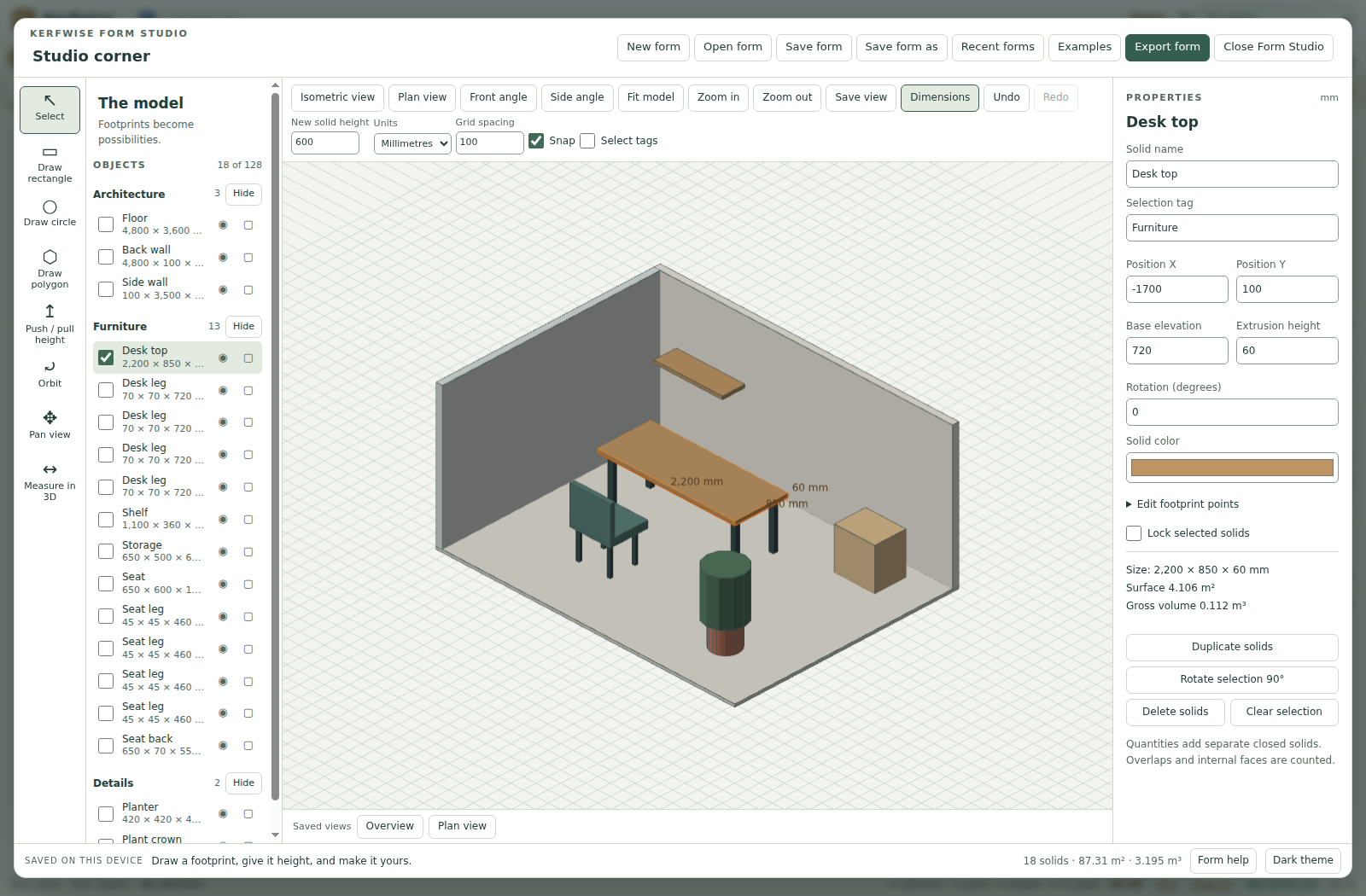
1. Start with a footprint
Choose New form and set New solid height in the view bar, for example to 600 mm. Then choose Draw rectangle and drag on the plan.
Draw circle drags from the centre and makes a 24-sided circular footprint. With Draw polygon, click at least three points, then press Enter or double-click to close the shape; Escape cancels it. Footprints must be simple outlines without holes or crossing edges.
You can also work with exact numbers: with nothing selected, the Properties panel offers Add measured box (width and depth), Add measured circle (radius) and Add footprint solid (one X,Y pair per line).
2. Give it height and place it
Choose Push / pull height and drag a solid up or down. In Properties you can enter an exact Extrusion height, Position X, Position Y, Base elevation and Rotation (degrees). Edit footprint points changes the outline itself. All values use the units chosen in the view bar (millimetres or inches).
Select a solid and drag it to move it across the ground. Grid snapping is on by default; hold Alt while dragging to move without snapping. Shift-click adds another solid to the selection. Duplicate solids, Rotate selection 90° and Delete solids are in the Properties panel, and Undo and Redo are in the view bar.
3. Organize a model
Give solids clear names and a Selection tag. The object list groups solids by tag and shows each solid's size. Its buttons hide or show a whole tag, hide a single solid or lock it. With Select tags turned on, clicking a solid selects every visible solid with the same tag. Locked solids cannot be moved, deleted or edited numerically.
On phones, Form objects and Form properties in the footer open the object list and the Properties panel.
4. Save useful views
Drag with the Orbit tool to turn the view; Shift-drag pans and the mouse wheel zooms. Fit model frames all visible solids. Isometric view and Plan view are quick presets; Front angle and Side angle look from a low angle.
Choose Save view, give the view a name and choose Save current view. Up to eight saved views appear in the strip below the model. A selected solid shows its overall dimensions; Dimensions turns them off. Measure in 3D measures the distance between two points on visible faces or on the ground.
5. Work with the keyboard
Every solid can be selected from the object list, and every property is a normal input field. When the model view has focus, the arrow keys move the selection by one grid step (ten with Shift) or turn the view when nothing is selected; + and − zoom. Single-letter shortcuts such as R (rectangle) or M (measure) work while the model view or the tool bar has focus. Form help lists all shortcuts.
6. Save and export
Form Studio saves a draft on your device automatically. Save form downloads a portable .kerfwise-form.json file. Use Recent forms or Open form to reopen projects; the main Kerfwise Open dialog also recognizes Form Studio files.
Export form offers OBJ, ASCII STL, the plan as SVG or PNG, the current view as PNG, a JSON model report and browser print/PDF. OBJ and STL always use millimetres with Z up. STL files do not store units, so choose millimetres when you import them.
Solids stay separate closed extrusions: intersections are not fused, and the gross surface and volume totals include overlaps and internal faces. A printed plan is scaled to the paper and is not a 1:1 production drawing. Use Kerfwise's cabinet workspace for joinery and cut lists.
For automation, use the Footprint to 3D Solid Extruder and 3D Form Model Report & Export tools. Their API and MCP results use the same geometry engine and include an editable project.
Ready to try it?